> ## Documentation Index
> Fetch the complete documentation index at: https://docs.naga.ac/llms.txt
> Use this file to discover all available pages before exploring further.
# Playground
Use the Playground when you want to test prompts, compare models, and inspect feature behavior before writing code.
It is the fastest way to experiment with the platform interactively, especially if you are still deciding which model or API workflow to use.
Playground is still under development, so bugs are possible.
## What it is good for
* comparing model behavior side by side
* testing prompts before moving them into your app
* exploring image and audio workflows without writing requests manually
* checking outputs quickly before you commit to an integration
## Open the Playground
1. Go to [https://naga.ac/playground](https://naga.ac/playground).
2. Pick a model or feature tab.
3. Run a few test inputs and compare the results.
## What you can test
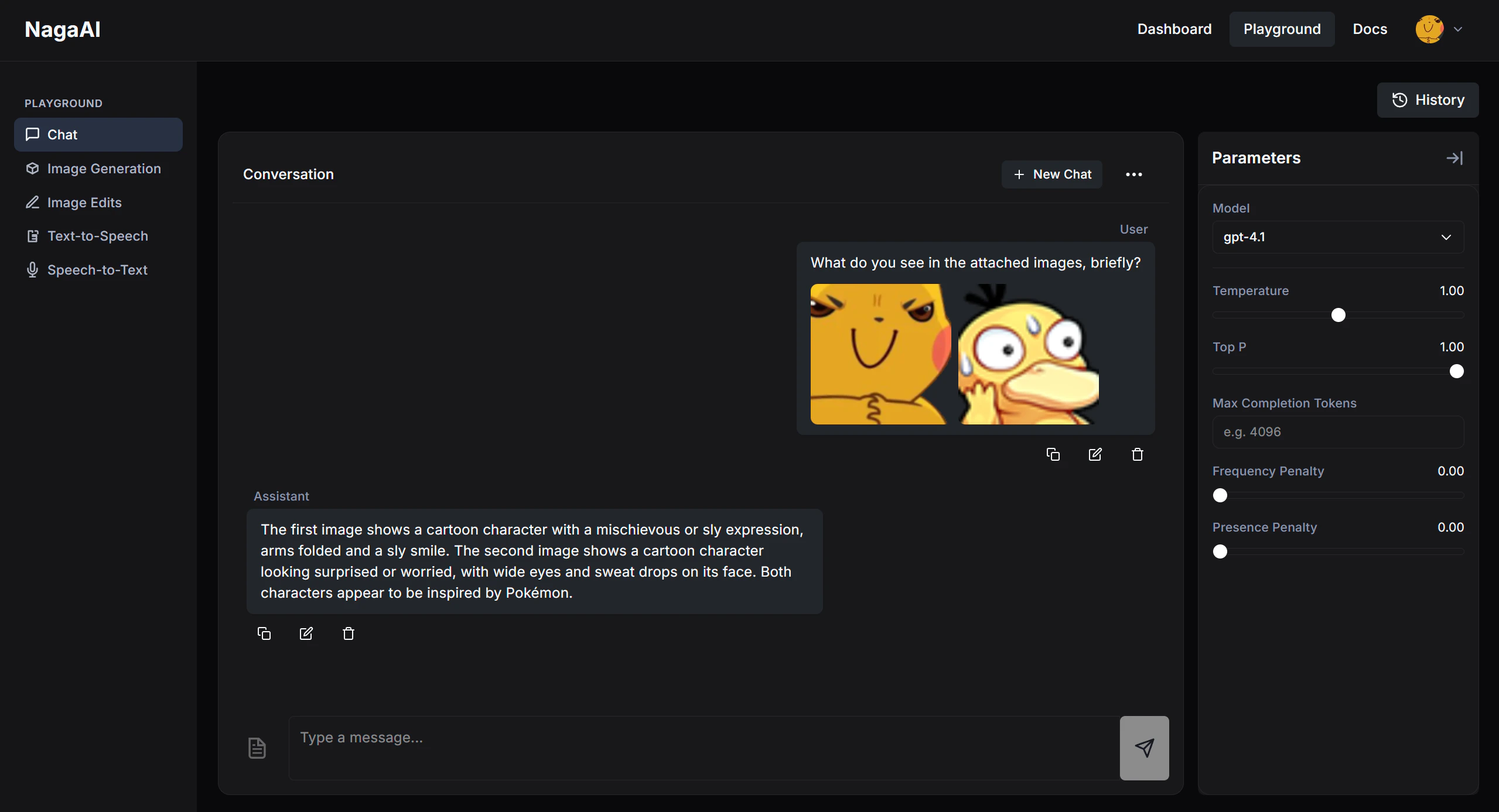
Use this view to try prompts, compare models, and inspect text responses before you wire the same behavior into the API.
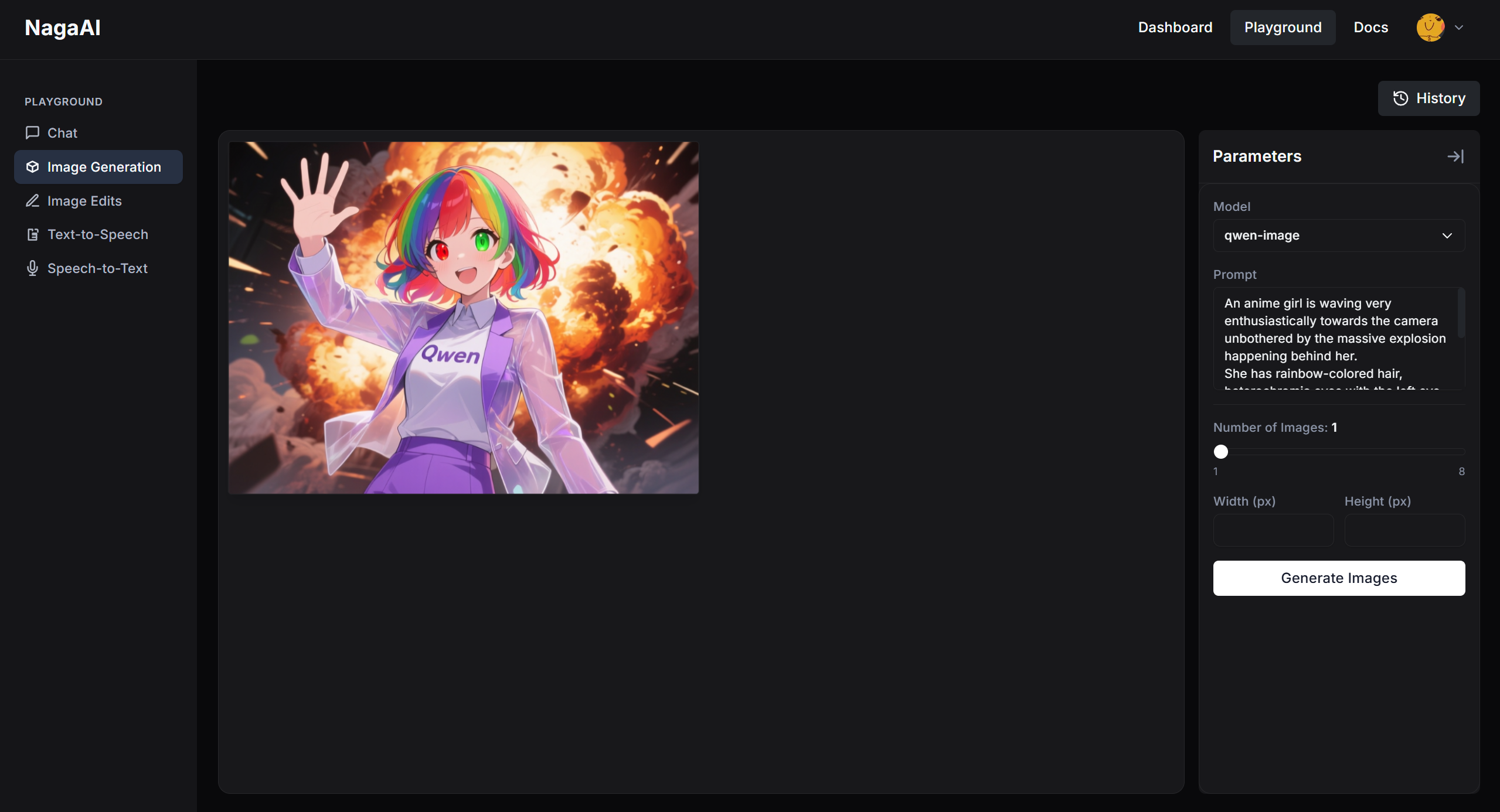
 Use this view to iterate on prompts, check visual style, and see whether an image workflow fits your use case before you build it programmatically.
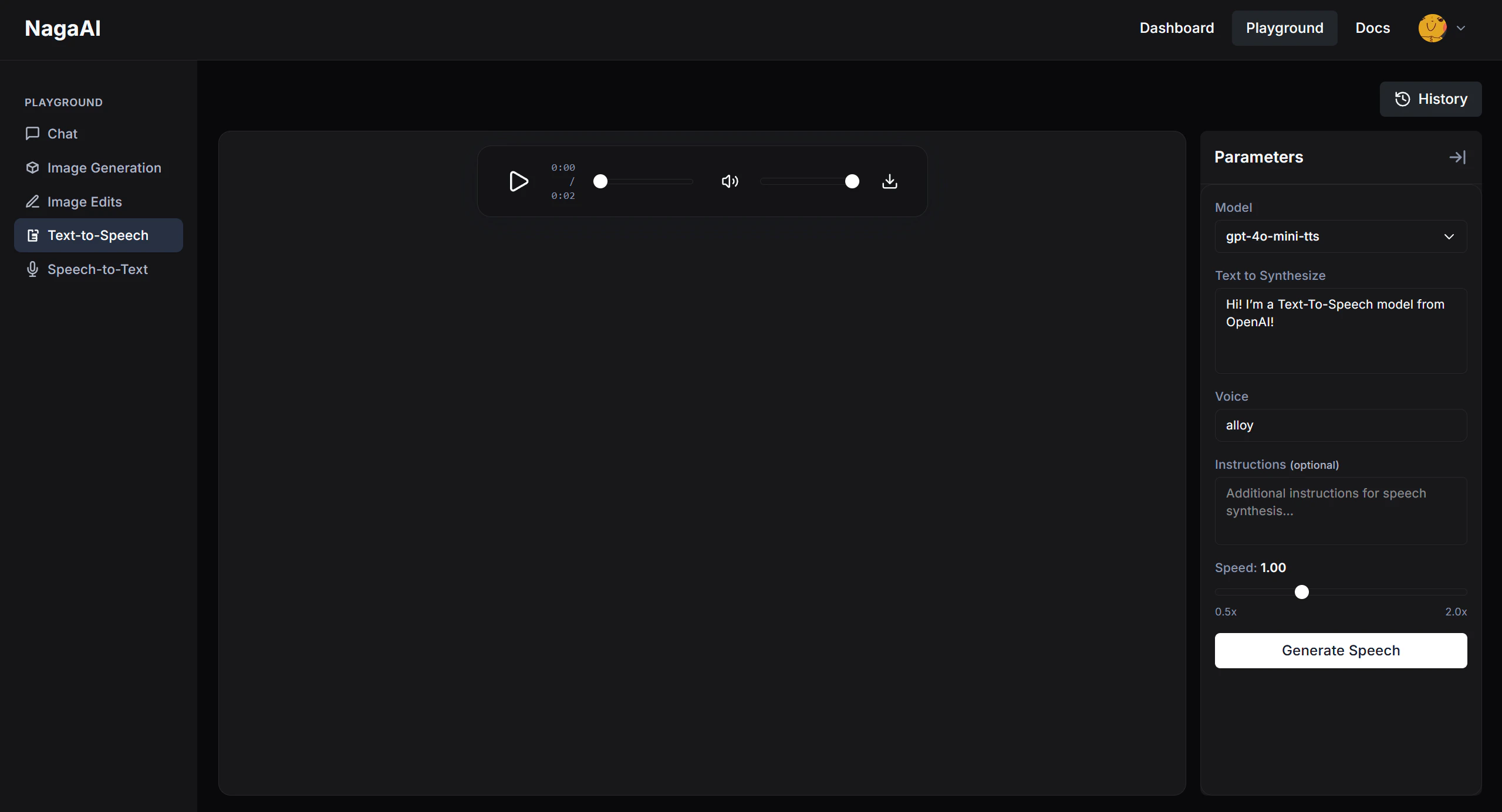
 Use this view to preview voices and output quality before you move to the `Audio API`.
 ## After testing in the Playground
* For production integrations, move to [Quickstart](/get-started/quickstart) or the [API Reference](/api-reference/overview).
* To choose the best API surface, read [Choose an API](/get-started/choose-an-api).
* To compare live model options, read [Models](/get-started/models).
## After testing in the Playground
* For production integrations, move to [Quickstart](/get-started/quickstart) or the [API Reference](/api-reference/overview).
* To choose the best API surface, read [Choose an API](/get-started/choose-an-api).
* To compare live model options, read [Models](/get-started/models).